Complete Terraria Server Hosting Guide: Setup, Configuration, and Tips
Learn how to set up and configure a Terraria dedicated server. Covers port forwarding, TShock, world settings, and why hosted servers beat self-hosting.
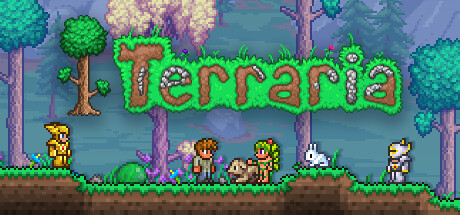
Why Host a Dedicated Terraria Server?
Terraria multiplayer is best experienced on a dedicated server. Unlike the built-in “Host & Play” option, a dedicated server runs independently of any player’s game client. It stays online 24/7, handles more players reliably, and gives you full control over world settings, mods, and permissions.
Whether you want a small private world for friends or a large community server with hundreds of players, this guide covers everything you need to know about Terraria server hosting.
Option 1: Self-Hosting a Terraria Server
System Requirements
Terraria servers are lightweight compared to most games. The minimum requirements are modest:
- RAM: 512 MB for a small world with a few players. 1-2 GB for 10+ players. 4 GB or more for 50+ players.
- CPU: Any modern processor will handle Terraria. Single-core performance matters more than core count.
- Storage: 1-2 GB for the server files and world data.
- Network: A stable connection with at least 5 Mbps upload speed. More players require more bandwidth.
Port Forwarding
Terraria uses TCP port 7777 by default. To allow external players to connect, you need to forward this port on your router:
- Assign your server machine a static local IP address.
- Log into your router’s admin panel.
- Navigate to port forwarding settings.
- Create a rule forwarding TCP port 7777 to your server’s local IP.
- Save and restart your router.
Players connect by entering your public IP address and port 7777 in Terraria’s “Join via IP” screen.
Running the Server
The Terraria dedicated server binary is included with the game. On Windows, run TerrariaServer.exe from your Terraria installation directory. On Linux, use the headless server binary. You will be prompted to select a world or create a new one, set the maximum player count, and choose a port.
Limitations of Self-Hosting
Self-hosting means your server is only online when your computer is running. Your home internet connection becomes the bottleneck for all players. Power outages, ISP issues, and router restarts all cause downtime. You also need to manage updates, backups, and security yourself.
Option 2: Managed Server Hosting
A managed hosting provider like Reactor eliminates the infrastructure headaches. Your server runs on enterprise hardware in a data center with redundant power and network connections. Setup takes minutes instead of hours.
What to Look for in a Host
- Instant setup: Your server should be ready within minutes of ordering.
- TShock support: TShock is the standard server software for Terraria, providing permissions, plugins, anti-cheat, and administrative commands. Make sure your host supports it.
- All world sizes: Small, Medium, and Large worlds should all be available.
- SFTP access: You need file-level access to upload existing worlds, install mods, and manage configurations.
- Automatic backups: Regular backups protect your world data from corruption or accidental damage.
- Low latency: Choose a host with servers located near your player base.
At Reactor, all of these features are included. Our Terraria servers support TShock with one-click installation, all world sizes, Journey Mode, and up to 255 players per server.
Configuring Your Server with TShock
TShock extends the vanilla Terraria server with essential management tools. Once installed, you can configure it through the config.json file or in-game commands.
Key Configuration Options
- MaxSlots: Maximum number of players allowed on the server simultaneously.
- ServerPassword: Set a password to restrict access to invited players only.
- SpawnProtection: Prevents griefing near the spawn point.
- AntiCheat: TShock includes built-in anti-cheat to detect modified clients.
- Permissions: Create user groups (guest, member, admin) with different permission levels.
Useful Server Commands
/kick [player]- Remove a player from the server./ban [player]- Permanently ban a disruptive player./save- Force a world save./time [day/night]- Change the time of day./give [item] [player]- Give items to players (admin only).
World Settings and Difficulty
When creating your world, you choose the size and difficulty:
- Small (4200 x 1200): Good for 1-4 players. Faster to explore.
- Medium (6400 x 1800): The sweet spot for most groups of 4-8 players.
- Large (8400 x 2400): Best for bigger groups or long-running servers.
Difficulty options include Classic, Expert, and Master. Expert mode scales boss health based on player count, adding roughly 35% health per additional player. Master mode adds exclusive drops and even tougher enemies.
Keeping Your Server Healthy
- Back up regularly: Schedule automatic backups daily at minimum. World corruption can happen during crashes.
- Update promptly: Keep your server version in sync with the game client. Version mismatches prevent players from connecting.
- Monitor performance: Watch for lag spikes during events like boss fights or blood moons with many players online.
- Set clear rules: Post server rules in the MOTD (message of the day) so players know what to expect.
Get Started
A dedicated Terraria server transforms the game from a casual co-op experience into a persistent world that your community can build and explore together. Whether you self-host or use a managed provider, the effort pays off in smoother gameplay and better reliability.
Ready to skip the setup hassle? Reactor’s Terraria hosting gets you online in minutes with TShock, automatic backups, and full SFTP access. Start building your world today.
Ready to host your game server?
Reactor offers instant setup, European hardware, full mod support, and 24/7 uptime. Starting at just €4.40/month.
Browse Game Servers →