Complete V Rising Server Hosting Guide: Setup, Configuration, and Management
Learn how to set up and manage a V Rising dedicated server. Covers hosting options, port configuration, server settings, and day-one tips.
Why Host a V Rising Dedicated Server?
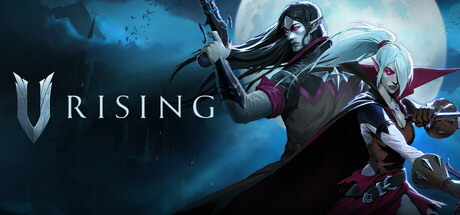
V Rising is a vampire survival game where you build castles, hunt V Blood bosses, and either cooperate or compete with other players. While you can host through Steam’s built-in multiplayer, a dedicated server keeps your world running 24/7, maintains castle persistence, and supports larger player counts. Your servants keep working, your castles stay standing, and other players can log in anytime without needing the host to be online.
Server Requirements
Before setting up a V Rising server, understand the hardware requirements. The official Stunlock Studios documentation lists the following minimum specifications:
- OS: Windows 10 64-bit or Windows Server 2016+
- CPU: Quad-core processor (uses up to 2 full cores under load)
- RAM: 4 GB minimum, 8-16 GB recommended for larger populations
- Storage: 6 GB SSD recommended for faster world loading
- Network: Stable connection with port forwarding capability
Required Ports
V Rising uses two network ports that must be forwarded through your router and firewall:
- UDP 9876 - Game traffic (player connections)
- TCP 9876 - RCON (remote console administration)
- UDP 9877 - Steam query (server browser listing)
If you change the default game port, the query port automatically adjusts to game port + 1.
Hosting Options
Self-Hosted Server
You can download the V Rising Dedicated Server tool for free through Steam (App ID 1829350) or via SteamCMD. This approach gives you full control but requires your machine to run continuously, manual port forwarding, and handling your own updates and backups.
Managed Hosting
A managed hosting provider handles the infrastructure: hardware, networking, automatic updates, and backups. You configure your server through settings files or a control panel without worrying about firewall rules or uptime. This is the recommended approach for communities that want reliability without system administration overhead.
Reactor’s V Rising hosting provides instant deployment on European servers with automatic backups, SFTP file access, and full settings customization.
Configuration Files
V Rising uses two main configuration files located in the server’s save directory:
ServerHostSettings.json
This file controls network and administrative settings:
- Name - Your server’s display name in the server browser
- Description - Server description visible to players
- Port - Game port (default 9876)
- MaxConnectedUsers - Maximum simultaneous players
- MaxConnectedAdmins - Reserved admin slots beyond the player cap
- SaveName - World save folder name
- Password - Server password (leave empty for public servers)
- ListOnSteam - Whether the server appears in the public browser
- AutoSaveCount - Number of auto-save backups to retain
- AutoSaveInterval - Seconds between auto-saves
ServerGameSettings.json
This file defines all gameplay rules. It is covered in depth in our V Rising server settings guide, but key sections include:
- GameModeType - PvE (0) or PvP (1)
- CastleDamageMode - Controls when and if castles can be damaged
- PlayerDamageMode - Player versus player damage rules
- CastleHeartDamageMode - Castle heart vulnerability windows
- DeathContainerPermission - Who can loot death containers
- BloodBoundEquipment - Whether equipment drops on death
- MaterialYieldModifier - Resource gathering multiplier
- CraftRateModifier - Crafting speed multiplier
Step-by-Step Setup for Self-Hosting
1. Install the Server
Open Steam, go to Library, enable “Tools” in the filter, and search for “V Rising Dedicated Server.” Install it. Alternatively, use SteamCMD:
steamcmd +login anonymous +app_update 1829350 validate +quit2. Configure Your Settings
Navigate to the server installation folder and find the settings templates. Copy the example settings files to your save directory and edit them with a text editor. Set your server name, password, max players, and game mode.
3. Open Ports
Forward UDP 9876 and UDP 9877 on your router. Add inbound firewall rules for both ports on your operating system.
4. Launch the Server
Run the server executable. On first launch, the world generates and the server begins accepting connections. Monitor the console output for any errors.
5. Connect
In V Rising, open the server browser and search for your server name, or use Direct Connect with your public IP address and port number.
Server Administration Tips
Adding Admins
Create or edit the adminlist.txt file in your save directory. Add Steam IDs (one per line) for players who should have admin privileges. Admins can use console commands for server management.
Useful Console Commands
adminauth- Authenticate as admin in-gamebanuser [name]- Ban a playerkick [name]- Kick a player from the serverannounce [message]- Send a server-wide announcement
Keeping the Server Updated
When Stunlock Studios releases a patch, update the server files through Steam or SteamCMD before players connect. Major updates like the 1.1 Invaders of Oakveil patch may require a fresh world due to map changes.
Backup Strategy
Regular backups protect against corruption and allow rollbacks. The server creates auto-saves based on your configured interval, but you should also maintain external backups of the entire save directory. Copy the save folder to a separate location daily at minimum.
With Reactor hosting, automatic backups run on a scheduled basis with seven days of retention, and you can trigger manual backups at any time through the control panel.
Choosing the Right Settings for Your Community
The default V Rising settings work well for small groups, but larger servers benefit from tuning. Increase resource rates for casual groups, set PvP time windows for balanced raid schedules, or disable teleport restrictions for convenience. Our companion article on best V Rising server settings covers recommended configurations for both PvE and PvP play styles in detail.
Ready to host your game server?
Reactor offers instant setup, European hardware, full mod support, and 24/7 uptime. Starting at just €4.40/month.
Browse Game Servers →